Quick start
Understand SaluTips before showing your QR
A short path based on real app screens: registration, profile, payment account, QR, statistics, withdrawal and support.
The real path after registration
These steps match existing screens and components. They explain what to do before using the QR with a guest.
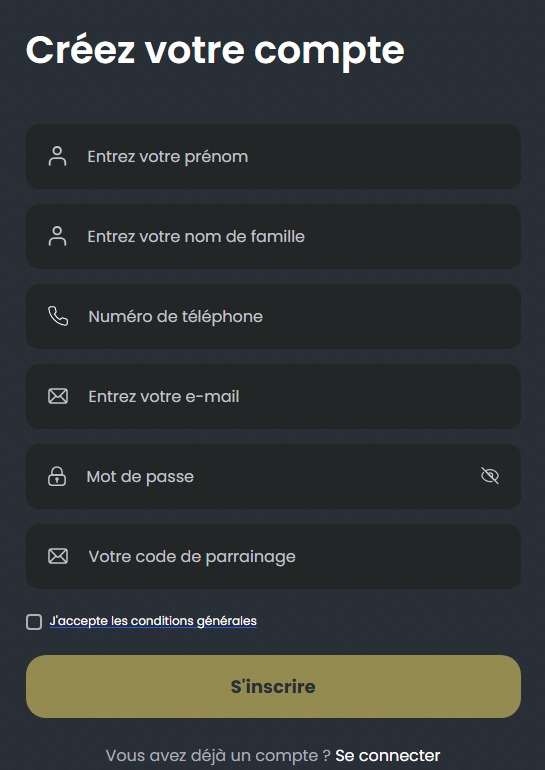
Create the account
Enter name, phone, email, password and accept the terms. The referral code is optional.
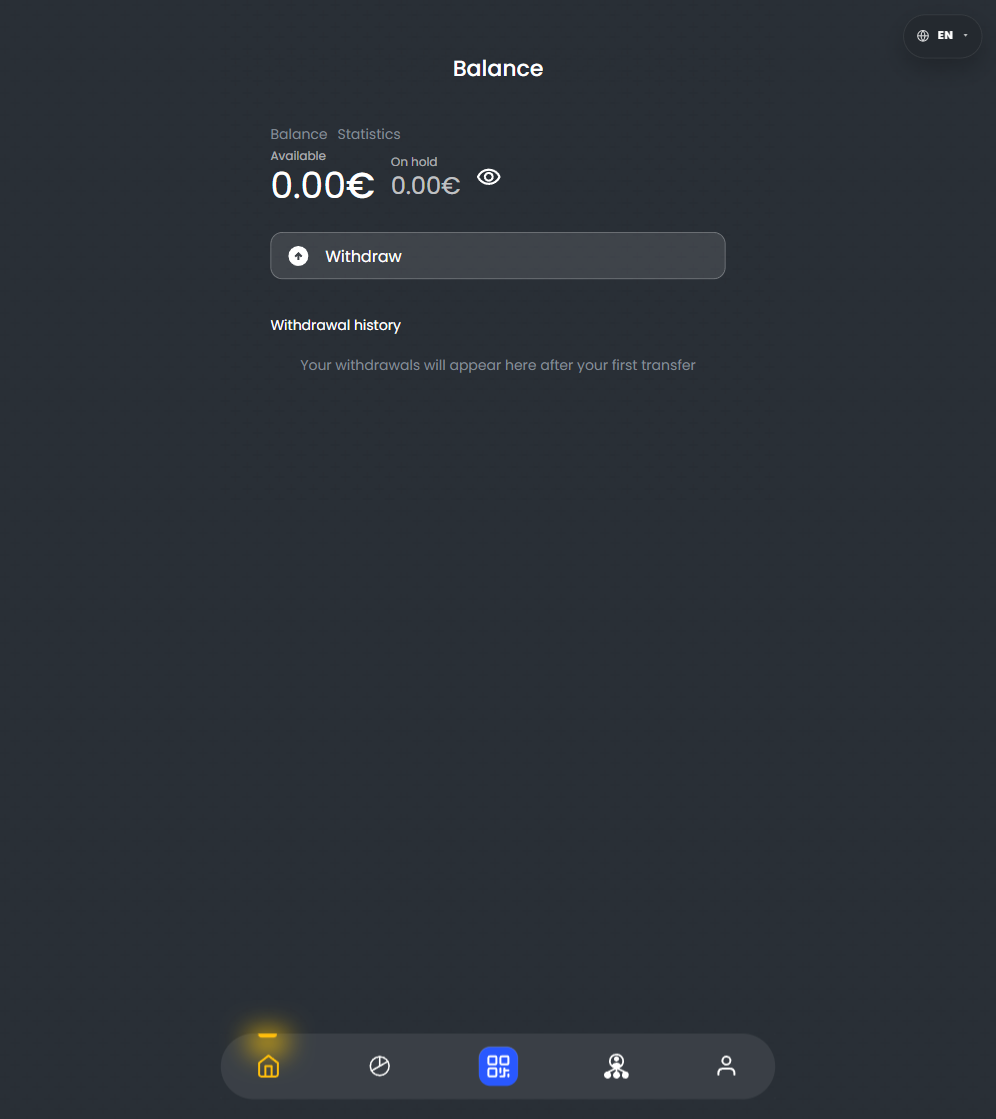
Confirm email if the app asks
The app has a confirm_email step. If that screen appears, the user must enter the code before continuing.
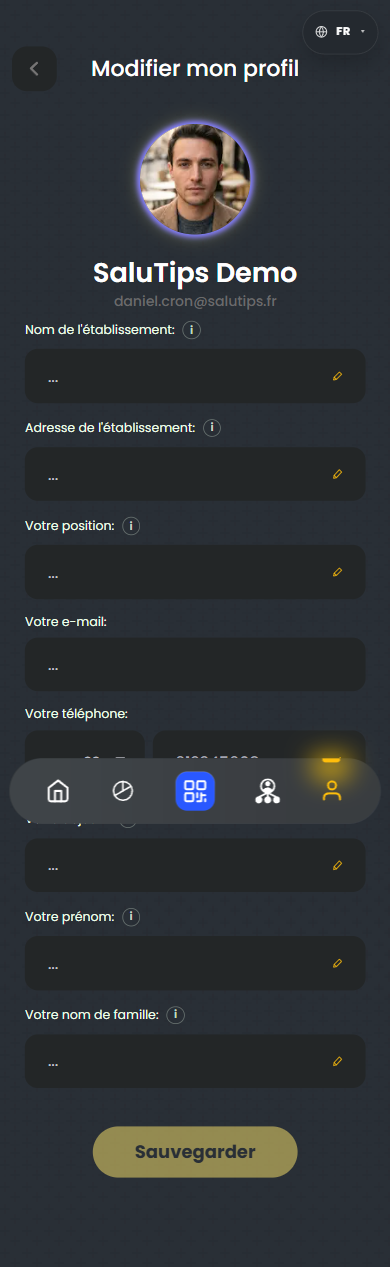
Complete the profile
In Settings -> Edit profile: venue, address, position, goal and personal data. These fields also support the verification path.
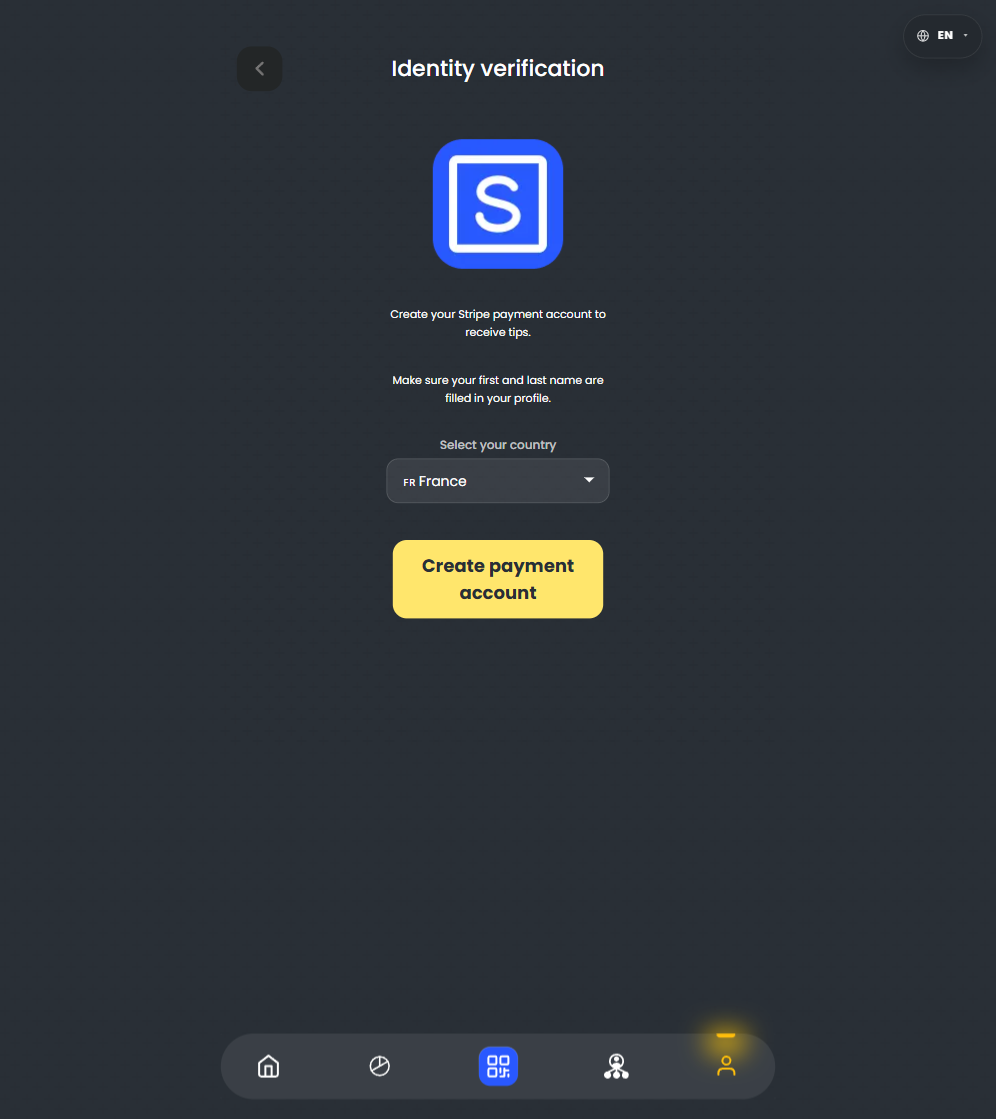
Create the payment account
In Settings -> Stripe verification: create the payment account, confirm the phone by SMS, then complete KYC.
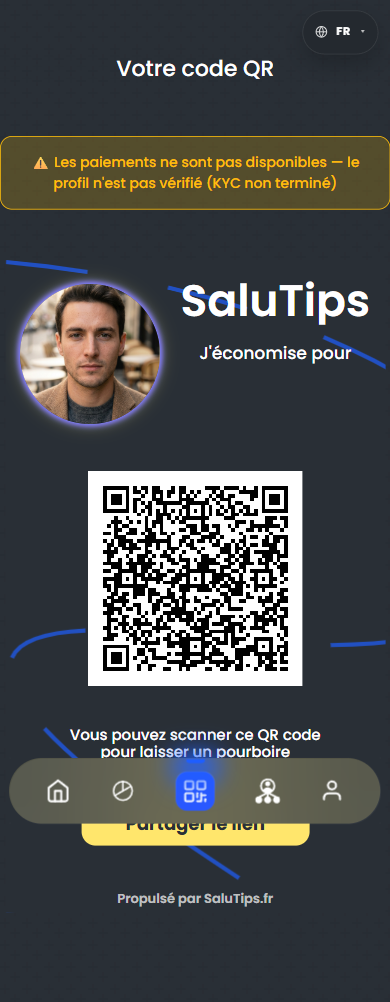
Use the QR
The QR screen shows the personal code and Share link. QR downloads and printable cards are available in Settings.
Add your profile photo
Use the same profile path before showing the QR to a guest. A clear portrait makes the personal QR easier to recognize.
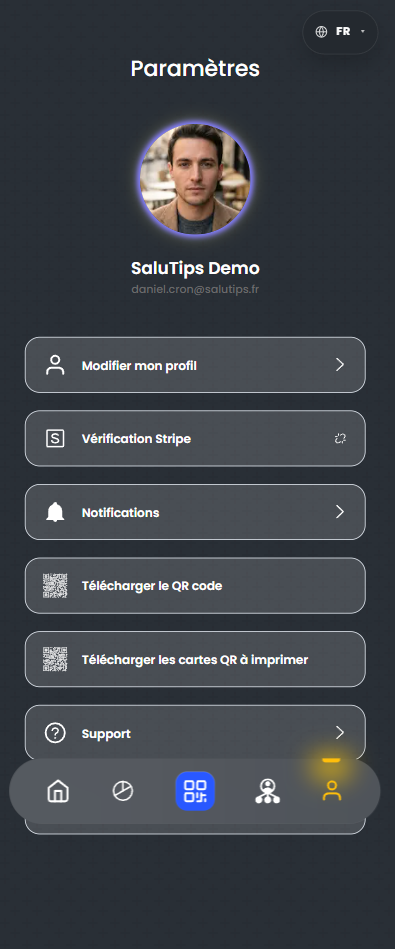
Open Settings
Tap the profile icon on the bottom right, then open Edit profile.
Upload and save the photo
Tap the round photo area, choose a clear portrait from the phone, then save the profile.
Install SaluTips on your phone
After opening app.salutips.fr in your browser, save SaluTips to the home screen so it stays available like an app.
Tap Share, then Add to Home Screen.
Open the browser menu, then choose Install app or Add to Home screen.
Open SaluTips from its icon. The service remains the same web app.
Download your QR and printable cards
In Settings, SaluTips shows two separate actions for preparing the QR outside the main QR screen.
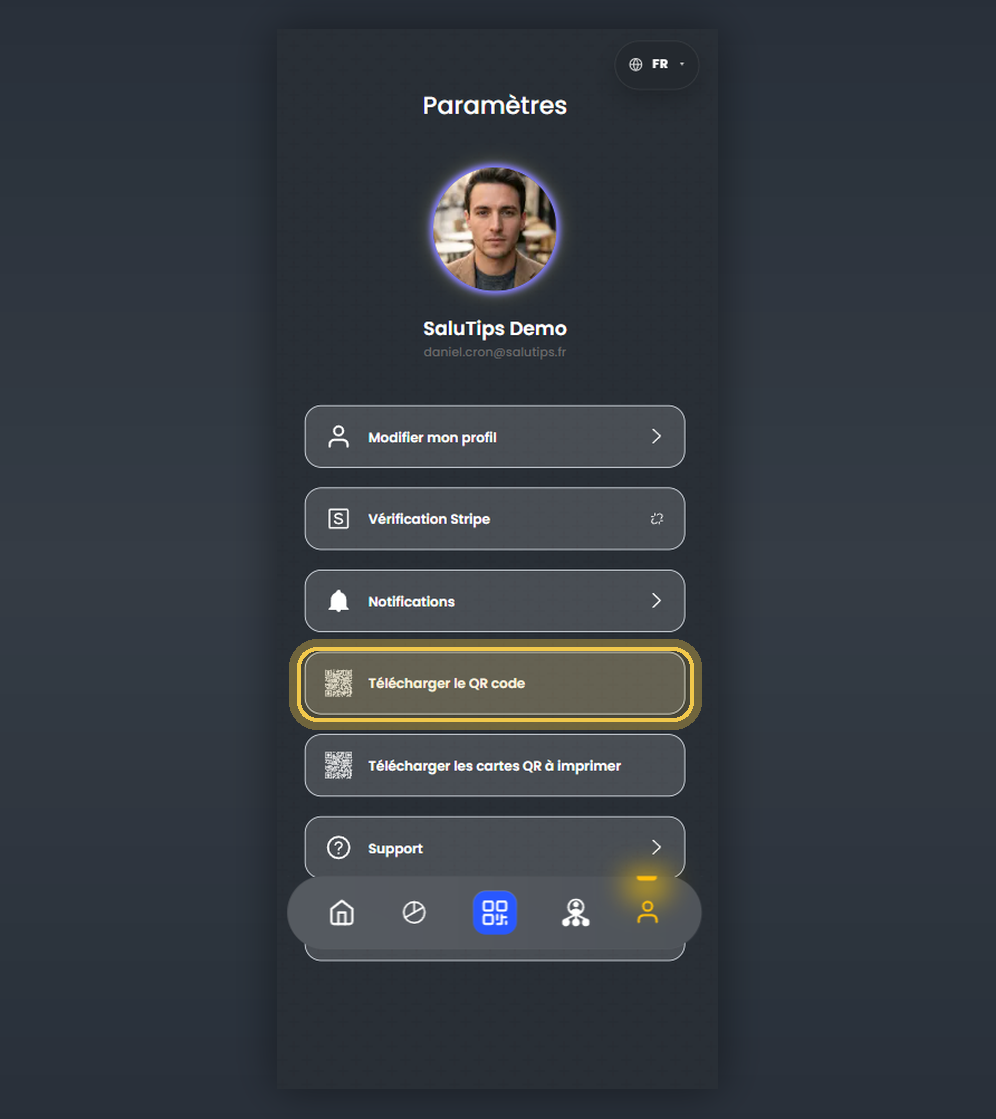
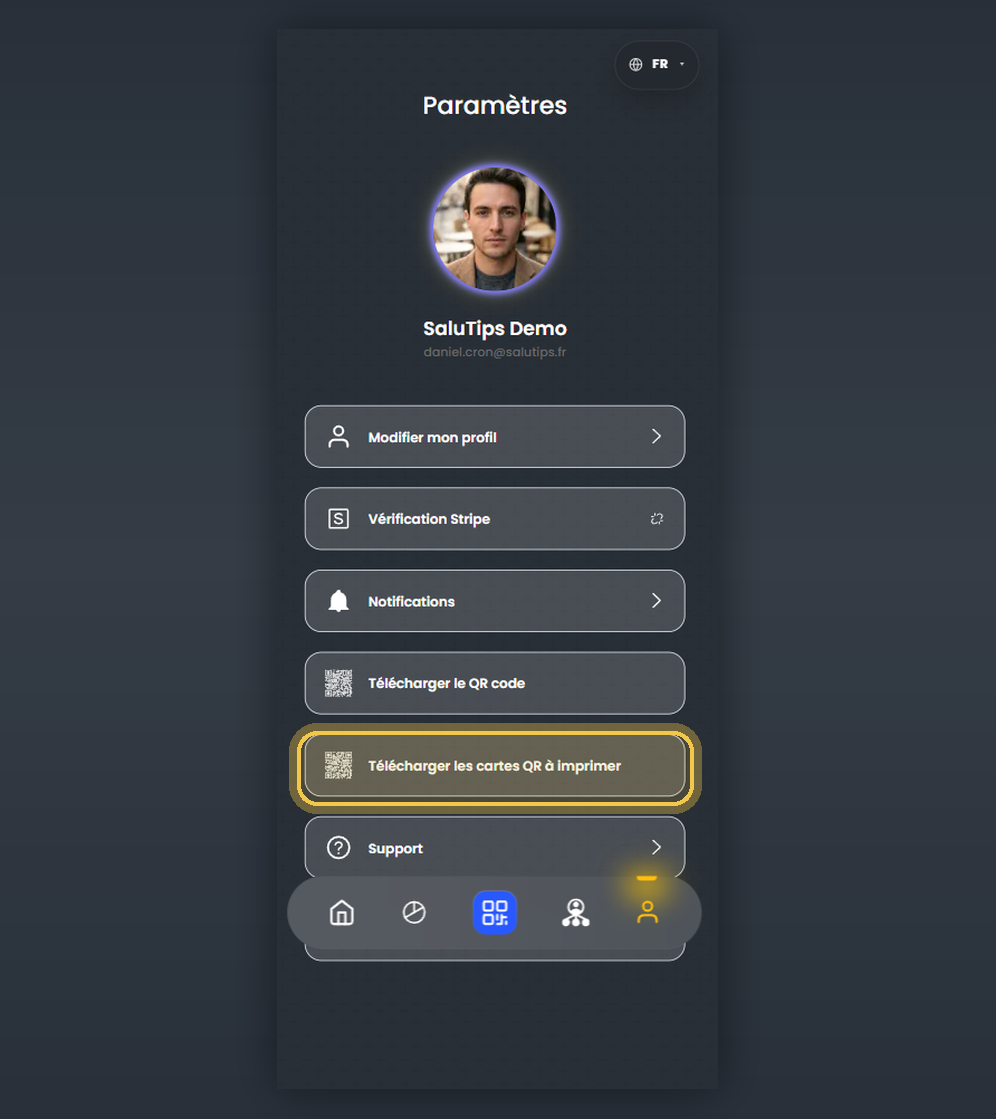
Tap the profile icon, last icon on the right in the bottom menu.
Downloads the QR alone, useful for a badge, poster or an already prepared material.
Downloads ready-to-print QR cards for placing on a table or giving to a guest.
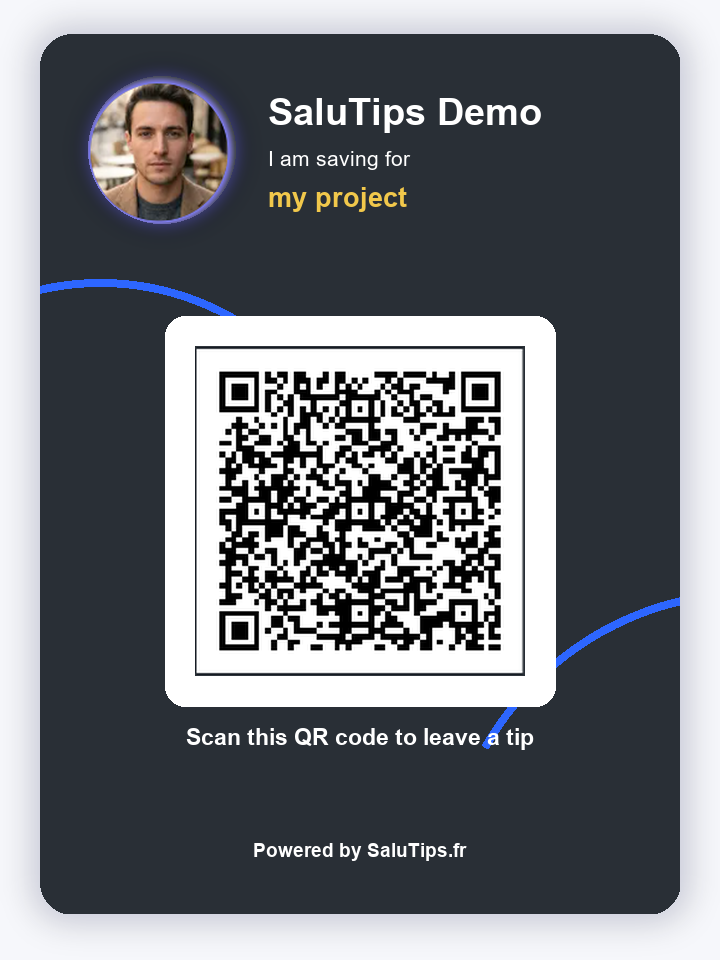
Show one card before printing
The download can open as printable QR material. This preview isolates one card so the user understands what can be printed, cut, and placed on a table or handed to a guest.
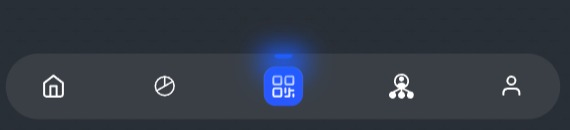
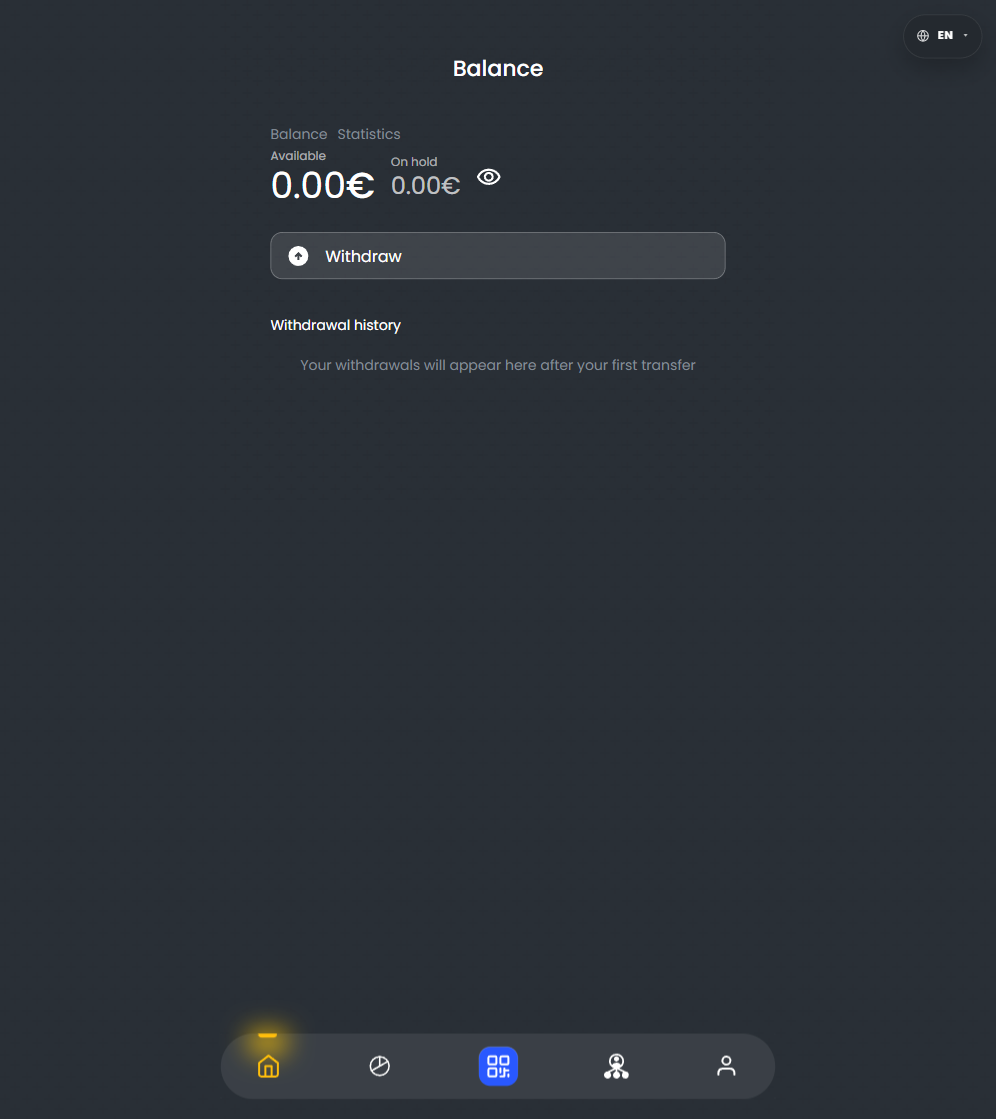
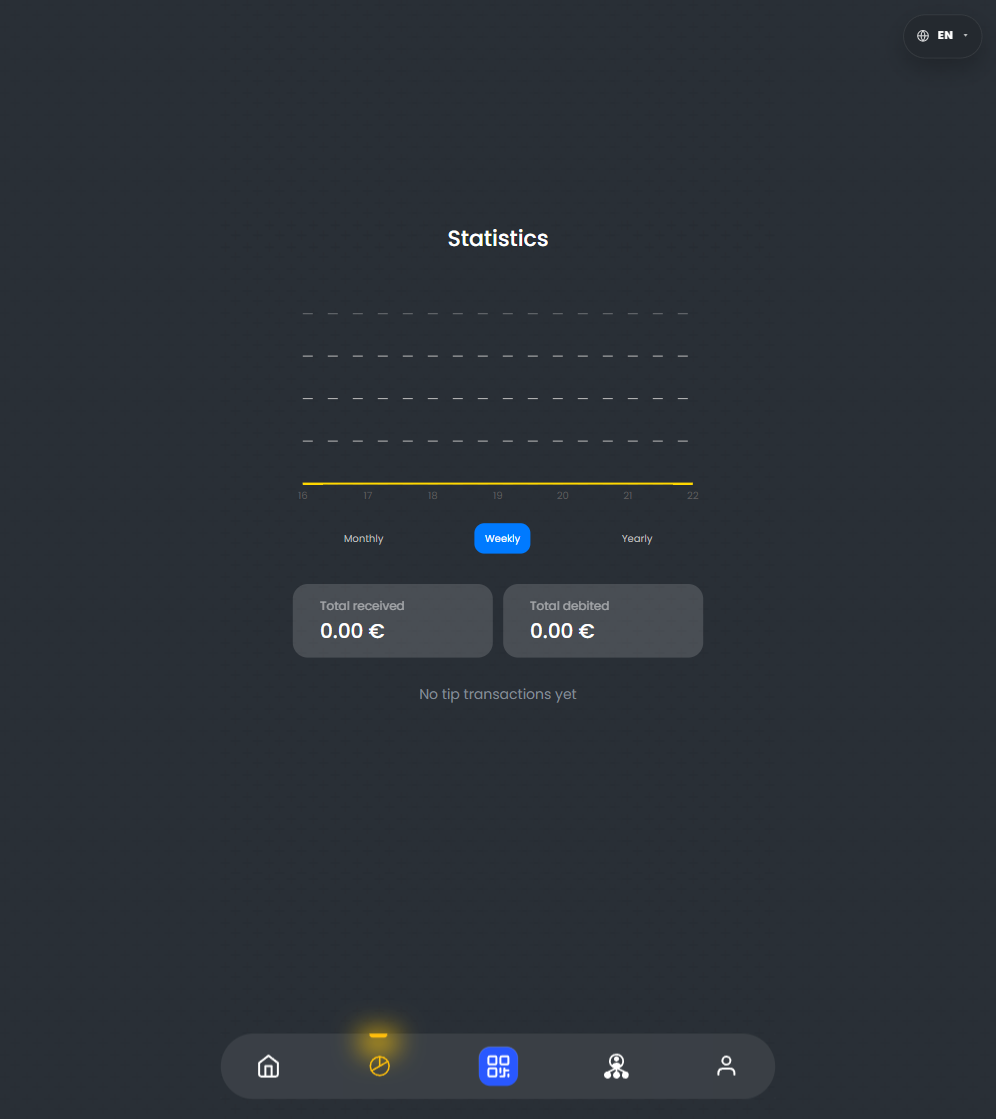
The 5 areas to know in the bottom menu
The bottom bar is the main account navigation. Use the map below to see which icon opens which screen.
Icon map
The QR action is in the center. The other icons are read from left to right in the bottom bar.
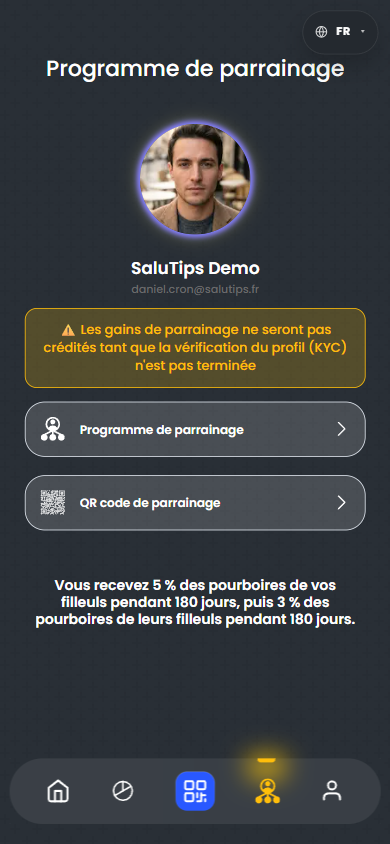
What can block first use
The page should remove these blockers before a waiter stands in front of a guest.
Email not confirmed
If the app sends the user to confirm_email, the next step is unclear until the code is entered.
Incomplete profile
Verification is disabled until required profile fields are filled.
No payment account
Without payment-account creation, SMS and KYC, payment functions remain unavailable.
Wrong expectation about QR
The QR is a screen and share link. The page must not say that a real payment has already been tested.
What we do not claim
The saved test did not confirm a real guest payment, a successful withdrawal, or completed KYC. The page therefore does not present those as done.
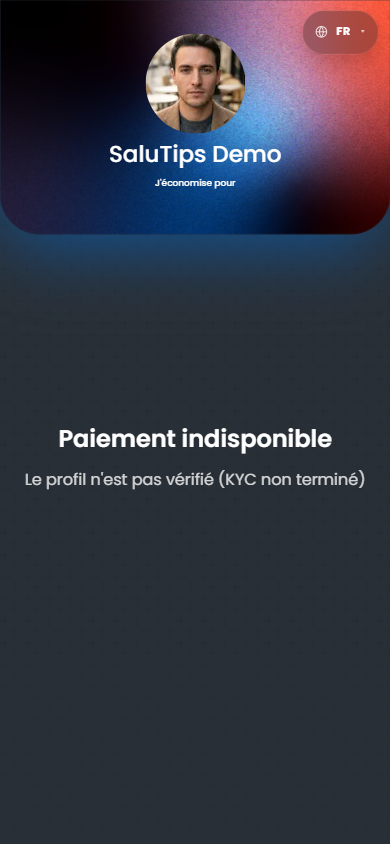
Personal card designs
Small QR cards for different service styles
Compact examples for hospitality, travel, wellness, delivery and independent service professionals.
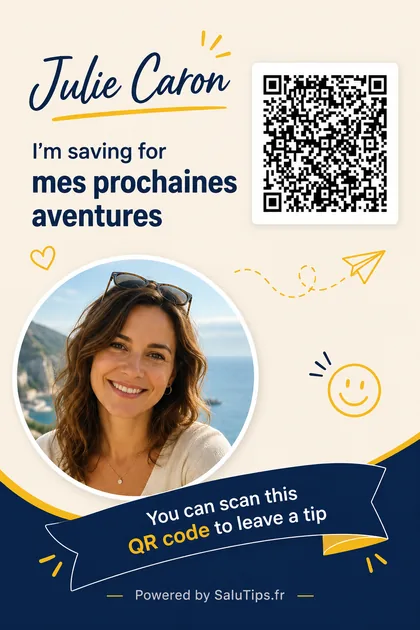
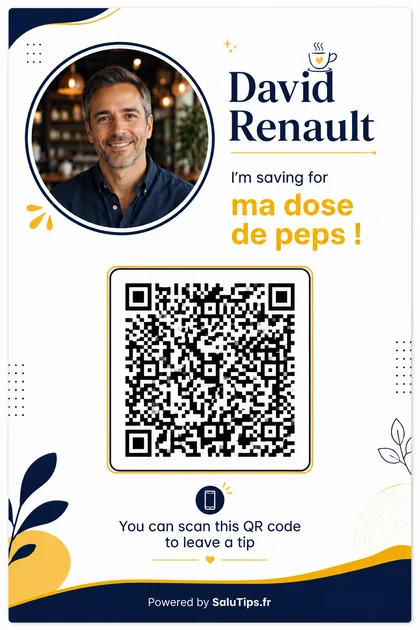
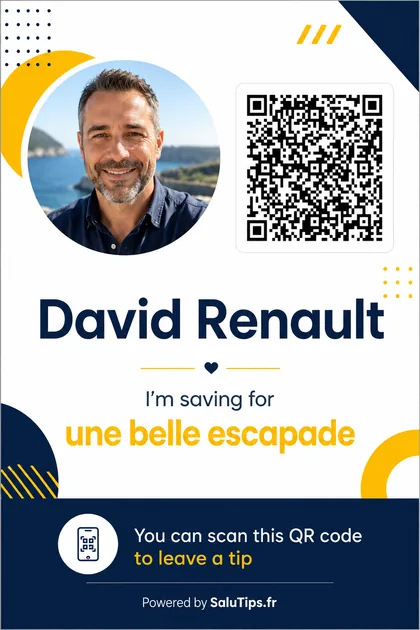
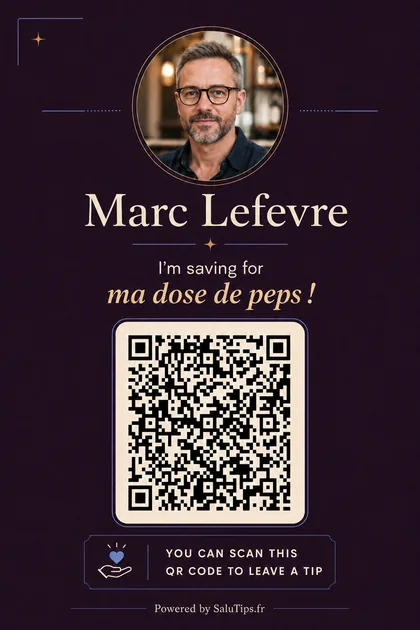
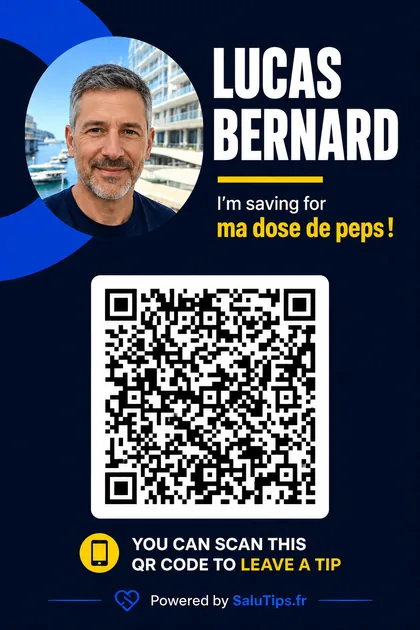
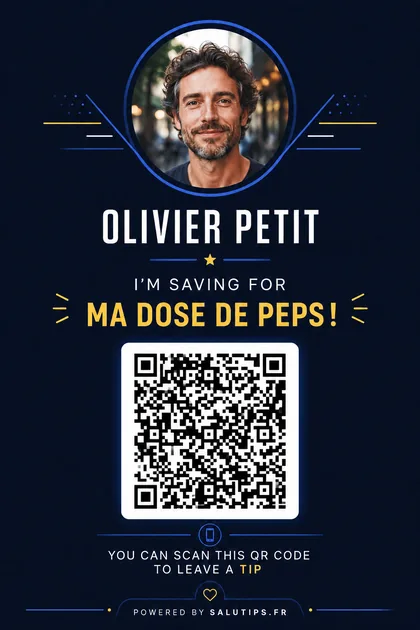
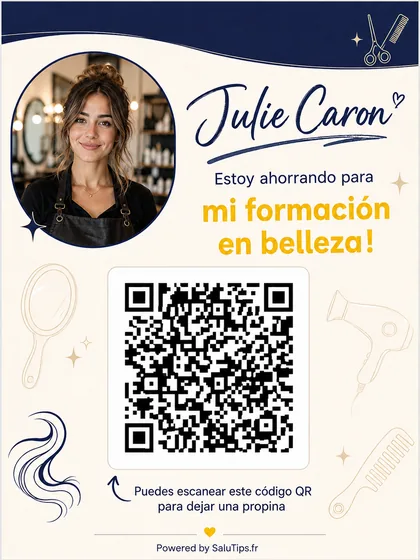
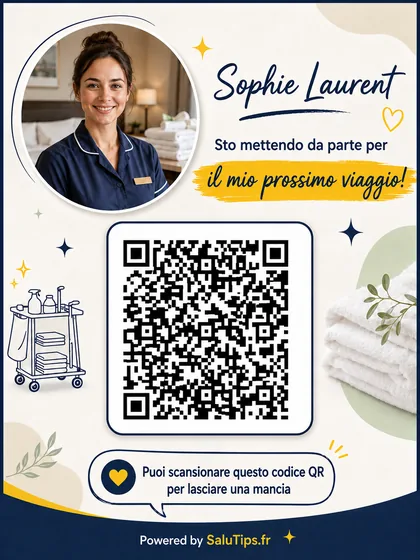
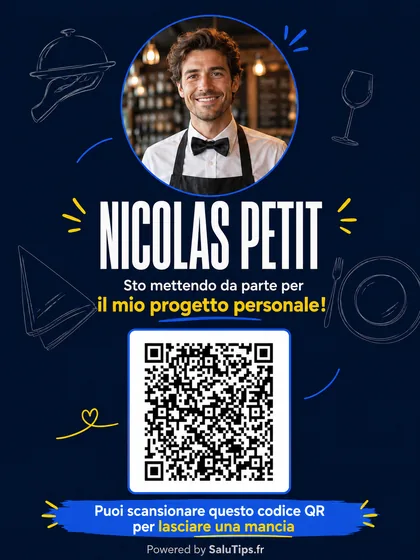
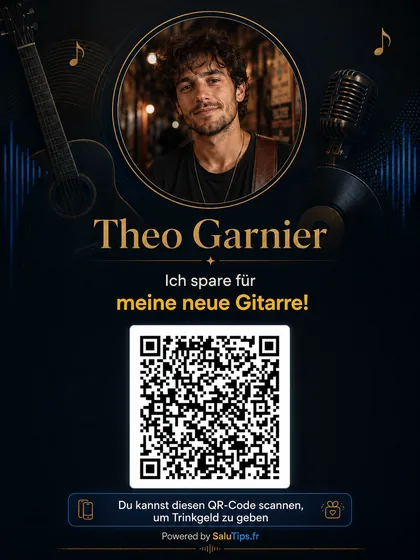
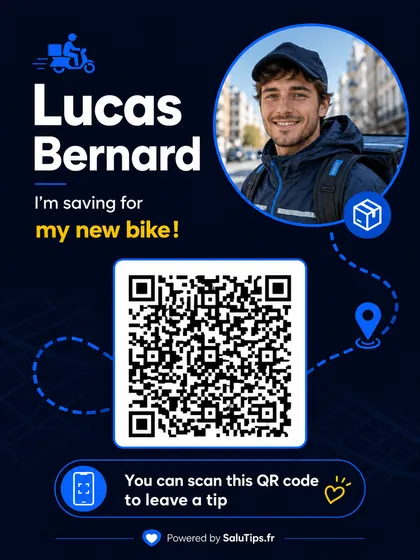
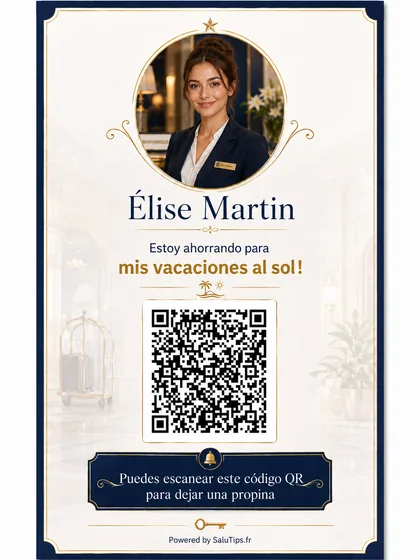
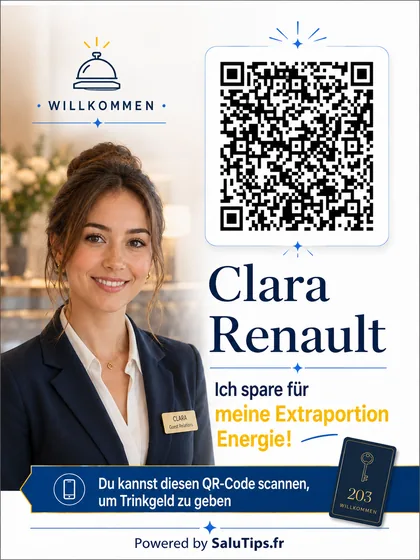
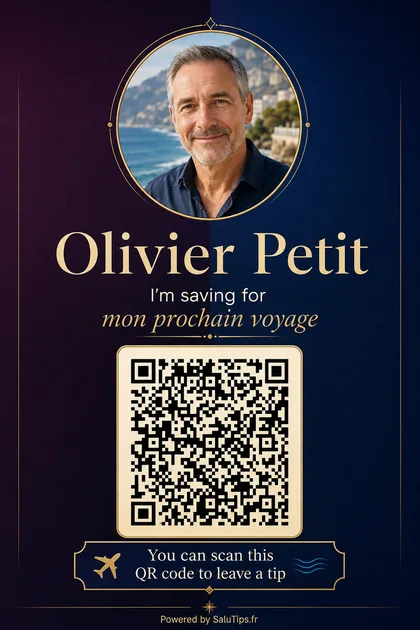
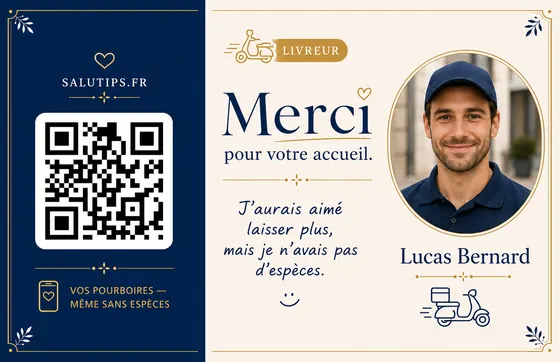
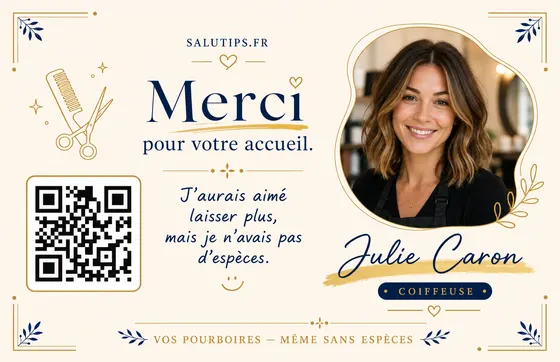
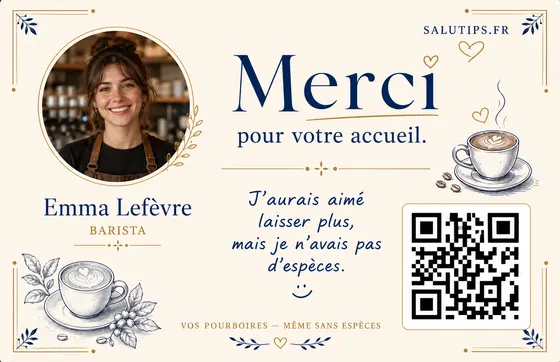

Design examples only; production cards should use the real profile QR and localized editable text.
SaluTips
A short path based on real app screens: registration, profile, payment account, QR, statistics, withdrawal and support.